

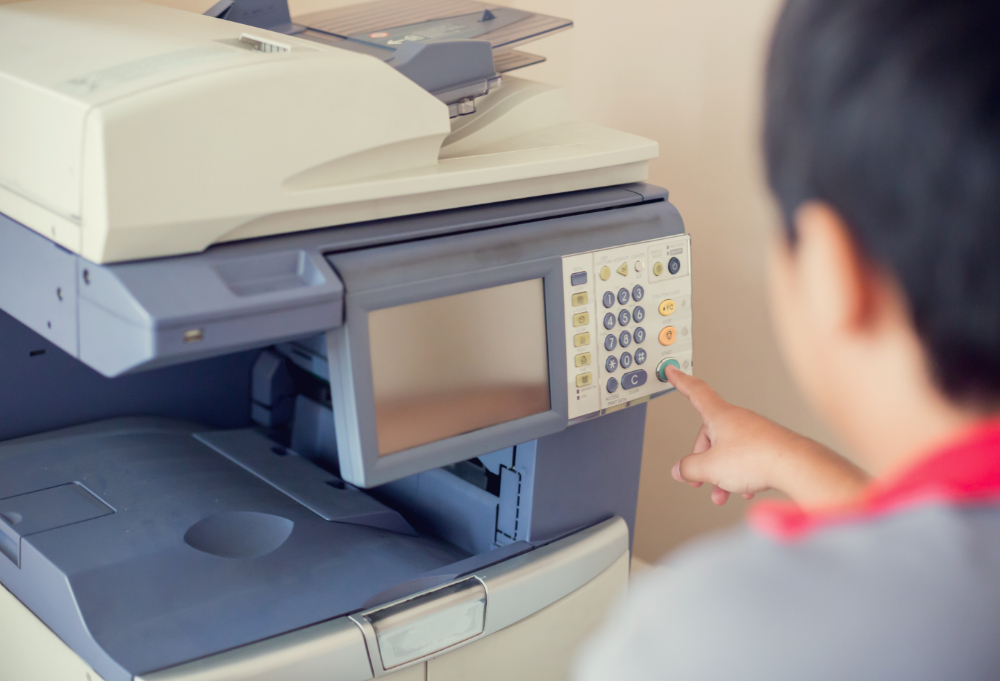
Copier repair calls and IT headaches can pile up fast when your office equipment maintenance gets neglected or when a simple configuration error goes undiagnosed. Whether you’re managing a small business in Halethorpe, MD, or running a large corporate office, copy machine networking problems are surprisingly common. The good news is that many of these issues have straightforward fixes you can try before calling in a technician.
1. The Copier Is Set to “Offline” Mode
One of the most overlooked causes of printer offline troubleshooting is also one of the simplest: the machine has been manually or automatically set to offline mode. When a copier is set to offline, your computer sends print jobs to a queue, but the machine never receives them. Go to your computer’s printer settings, find the copier in your device list, and make sure the “Use Printer Offline” option is unchecked. On Windows, you can find this under Devices and Printers by right-clicking the copier’s icon. This single step resolves the issue more often than most people expect.
2. IP Address Conflicts on the Network
A very common copy machine networking problem involves IP address conflicts. Every device on your network needs a unique IP address. If two devices share the same address, communication breaks down and your copier may appear offline or unresponsive. This often happens when a copier is set to use a static IP address that overlaps with a dynamically assigned address from your router’s DHCP server. To fix this, log into your copier’s network settings (usually accessible through the control panel or a web-based admin portal) and either assign it a unique static IP that falls outside your DHCP range or switch it to obtain an IP address automatically. For businesses in Halethorpe, MD, working with a business IT consultation service can help you map out your network properly to avoid these conflicts long-term.
3. Outdated or Corrupted Printer Drivers
Your copier communicates with computers through software called drivers. When those drivers become outdated or corrupted, the connection between your machine and the network can break entirely. This is a frequent source of printer offline troubleshooting calls that get escalated unnecessarily. Visit the manufacturer’s website and download the latest driver for your specific copier model. Uninstall the old driver first, restart your computer, and then install the fresh version. Keeping drivers updated is a basic part of office equipment maintenance that many businesses skip, often to their own frustration.
4. Faulty or Loose Network Cables
If your copier connects to the network via an Ethernet cable rather than Wi-Fi, a loose or damaged cable can sever the connection without any obvious warning. Before diving into complex copier repair diagnostics, check the physical cable running from your copier to the wall jack or network switch. Make sure it clicks firmly into place on both ends. Try swapping it out for a known working cable to rule out damage. Network cables can degrade over time, especially in busy office environments where they get stepped on, bent, or pinched under furniture.
5. Wi-Fi Signal Weakness or Interference
For copiers that connect wirelessly, signal strength plays a huge role in network reliability. If your copier is located far from your wireless router or is separated by thick walls, metal shelving, or other electronics, it may struggle to maintain a stable connection. This is a surprisingly common copy machine networking issue in offices that have expanded their physical footprint without updating their network infrastructure. Consider moving the copier closer to the router, using a Wi-Fi extender, or switching the copier to a wired Ethernet connection for more reliability. A business IT consultation can help you evaluate your office’s wireless coverage and eliminate dead zones.
6. Firewall or Security Software Blocking the Connection
Network security tools, including firewalls and antivirus software, can sometimes be overly aggressive and block legitimate communication between your computers and your copier. This is a less obvious but very real cause of printer offline troubleshooting scenarios. Check your firewall settings to make sure the copier’s IP address is whitelisted and that the relevant ports (typically port 9100 for printing) are open. If you recently updated your security software or changed your network’s security policies, that change may have introduced the block. IT professionals who specialize in office equipment maintenance and business IT consultation can help you configure these settings without compromising your overall security posture.
7. Incorrect Network Configuration After a Router or Modem Upgrade
Anytime you upgrade or replace your router or modem, your network settings change. This includes your network name (SSID), password, and sometimes your IP address range. Your copier stores these settings internally, and when they change, the copier loses its ability to find and join the network. After any router upgrade, go back into your copier’s network settings and re-enter the correct Wi-Fi credentials or update the IP configuration to match the new network environment. This step is often missed during business IT consultation reviews following infrastructure upgrades, leading to days or weeks of avoidable copier repair calls.
8. Firmware That Needs to Be Updated
Just like your smartphone or laptop, your copier runs on firmware, the internal software that controls how the machine operates. Manufacturers regularly release firmware updates that fix bugs, improve performance, and resolve connectivity issues. If your copier is having persistent network problems that don’t respond to other fixes, an outdated firmware version could be the root cause. Check the manufacturer’s support page for your model and follow their instructions for updating. This is an often overlooked component of proper office equipment maintenance, and it can make a significant difference in how reliably your machine connects to the network. Businesses in Halethorpe, MD, dealing with recurring connectivity issues should add firmware checks to their regular copier repair maintenance schedule.
9. Network Switch or Router Malfunction
Sometimes the problem has nothing to do with the copier itself. Network switches and routers can experience hardware failures, overheating, or software glitches that disrupt connectivity for all connected devices, including your copier. If multiple devices on your network are experiencing issues at the same time, your switch or router is likely the culprit. Try restarting the network switch or router by unplugging it, waiting 30 seconds, and plugging it back in. If the problem persists, the hardware may need to be replaced. A thorough business IT consultation can help identify whether your networking hardware is aging out and due for an upgrade, preventing future downtime across your entire office.
Conclusion
Copy machine networking problems are rarely as catastrophic as they first appear. Most connectivity issues come down to configuration errors, outdated software, physical connection problems, or network hardware that needs attention. By working through these nine common issues systematically, you can resolve most problems quickly and get back to productive work. For persistent issues or complex network environments, partnering with a copier repair specialist or business IT consultation service in Halethorpe, MD, ensures that your office equipment maintenance stays on track and your machines stay connected when you need them most.
Need Business IT Consultation Near You?
At Premier Business Technologies, we are committed to helping businesses in West Baltimore, MD stay productive and connected with dependable copier sales, fast and effective copier repair, advanced VOIP systems, integrated ringsystem solutions, and managed print services tailored to your needs. Our team focuses on delivering responsive support and innovative office technology that keeps your operations running smoothly while supporting your long-term growth. We understand how costly downtime can be, which is why we work hard to provide reliable solutions and personalized service every step of the way. Contact us today to schedule service, request a free quote, and discover how we can help improve your office efficiency.